Build a Raspberry Pi Observatory Dashboard for Remote Sky Monitoring
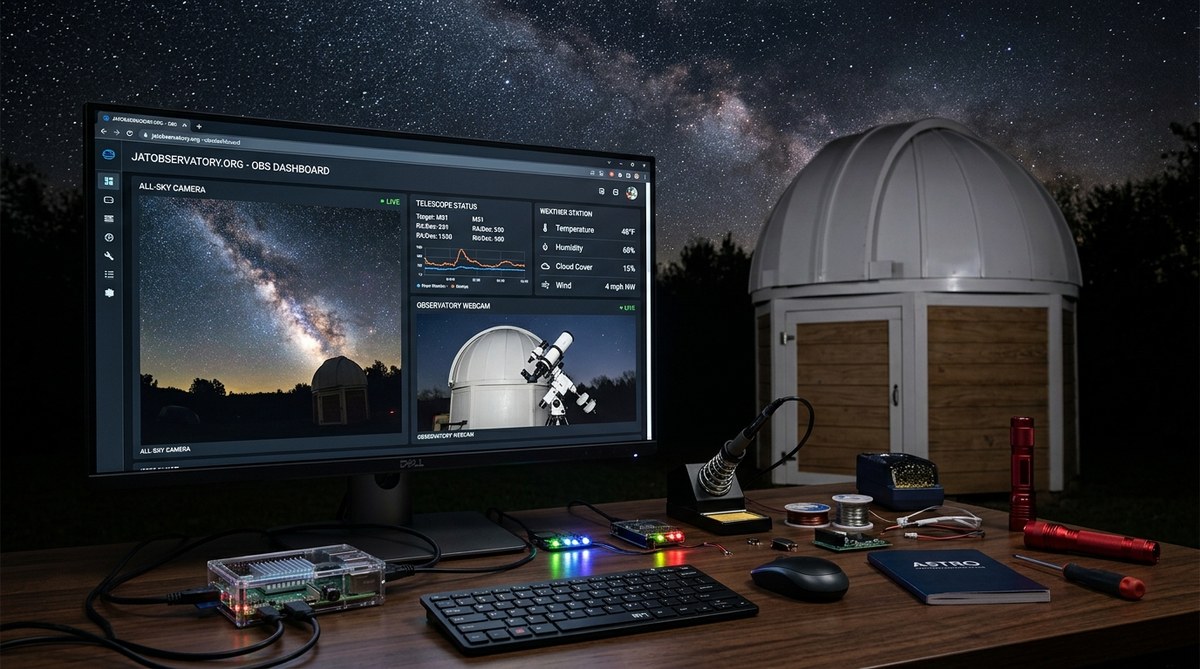
You step outside on a clear night, and the sky looks perfect. No clouds, no moon, just stars from horizon to horizon. But your telescope is in the backyard, and you are inside. Maybe you are watching a movie. Maybe you are already in bed. The idea of running out to check conditions feels like a chore. That is where a Raspberry Pi observatory dashboard changes everything. It lets you see what your telescope sees, check the weather, and monitor your all-sky camera from anywhere. No coat required. No guesswork.
A Raspberry Pi observatory dashboard gives you real-time control and monitoring of your remote telescope or all-sky camera from any device. You can check cloud cover, temperature, and camera feeds without leaving your house. This guide covers hardware, software, and automation steps so you can build your own system in a weekend.
What a Raspberry Pi Observatory Dashboard Actually Does
Think of it as a mission control center for your backyard. The dashboard collects data from sensors and cameras and displays it on a web page you can open on your phone, tablet, or laptop. You can see:
- Live video from your all-sky camera
- Current temperature, humidity, and dew point
- Cloud coverage readings from a sky quality sensor
- Whether your telescope mount is powered on
- Recent images captured overnight
The Raspberry Pi acts as the brain. It runs the software, hosts the web dashboard, and talks to your gear. Because the Pi is small, cheap, and uses very little power, it is perfect for leaving on 24/7 inside an observatory or weatherproof enclosure.
Hardware You Will Need
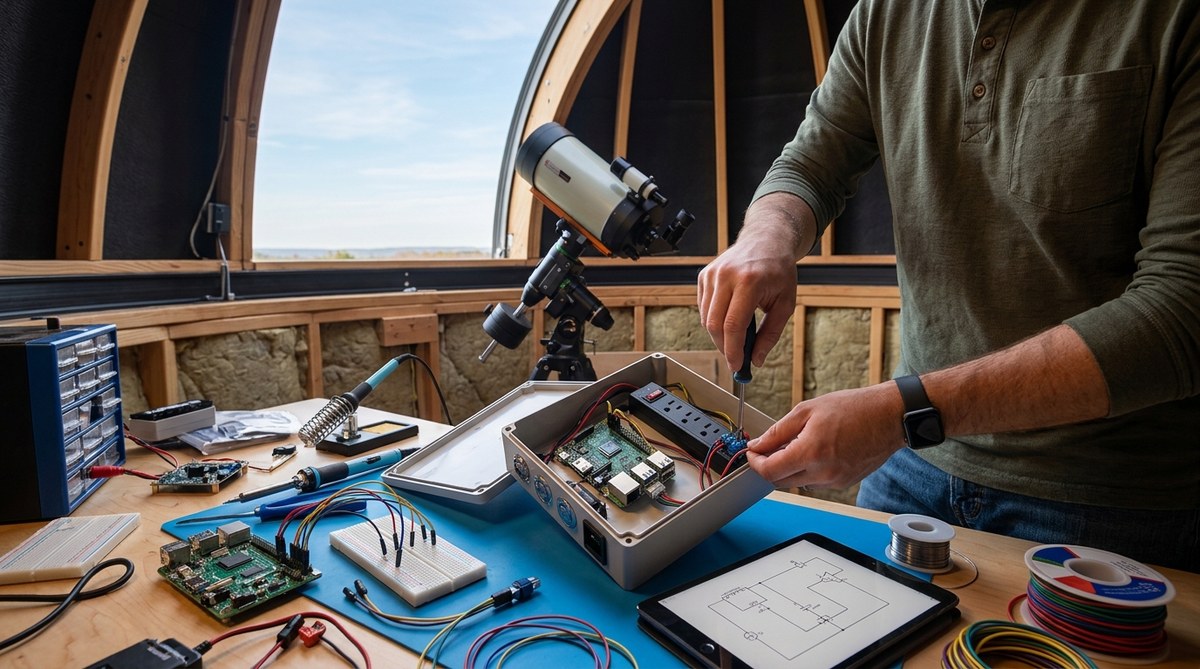
Building a Raspberry Pi observatory dashboard does not require a huge budget. Most of the items are common in any maker’s toolbox. Here is what you need to get started:
The Core Components
- Raspberry Pi 4 or 5 – The Pi 4 with 4GB of RAM works well. The Pi 5 offers faster processing if you plan to run multiple cameras.
- MicroSD card (32GB or larger) – Use a high-endurance card designed for continuous write cycles.
- Raspberry Pi Camera Module (or USB camera) – For the all-sky view, the Pi Camera Module 3 works great. You can also use a USB astronomy camera.
- Power supply – Get the official Raspberry Pi power supply for stability. A 5V 3A or 5V 5A unit is best.
- Ethernet cable or WiFi dongle – Wired is more reliable for remote setups. WiFi works if your signal is strong.
- Temperature and humidity sensor – A simple DHT22 sensor connected to the GPIO pins gives you weather data.
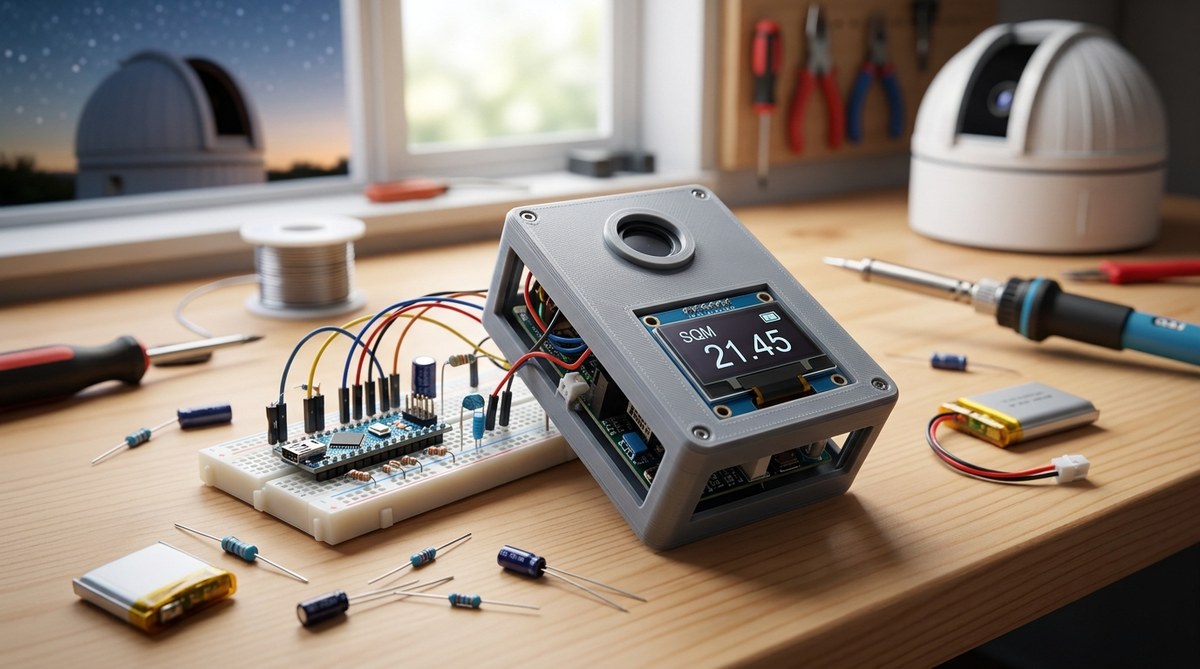
- Sky quality meter (optional) – Sensors like the SQM-LU let you measure light pollution and cloud cover.
Enclosure and Mounting
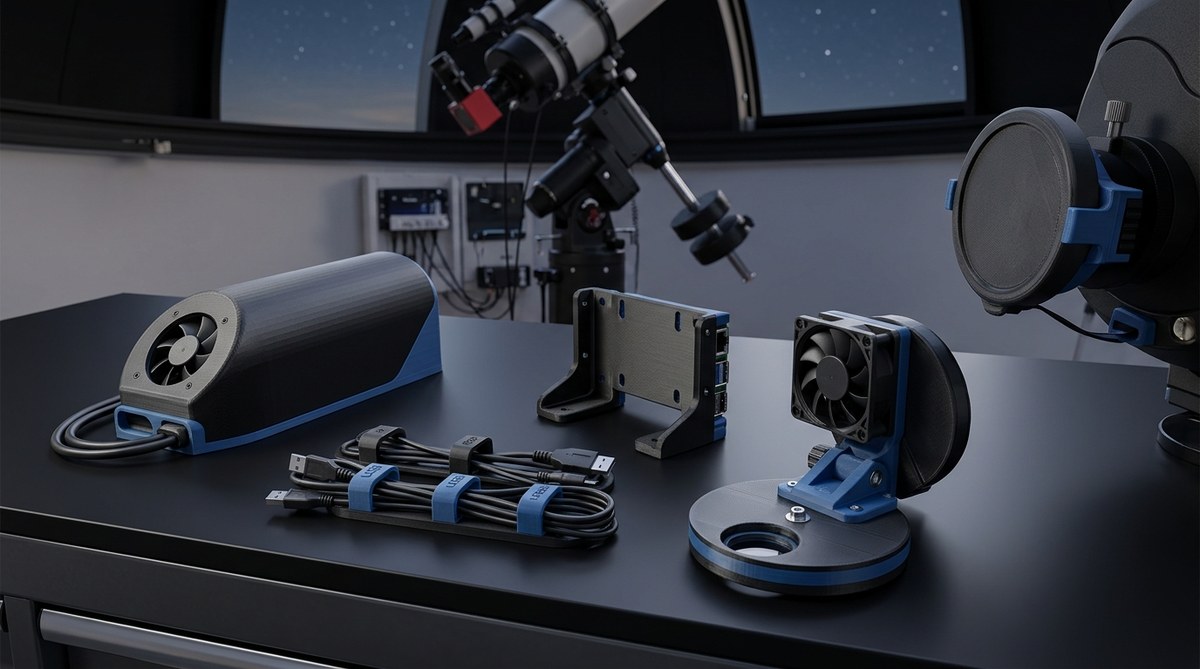
Your Pi needs protection from the elements. A weatherproof plastic enclosure with cable glands keeps moisture out. Mount the camera under a small acrylic dome or inside a clear housing. For a detailed breakdown of enclosures, check out our guide on building a weatherproof enclosure for remote observatory equipment.
Software Setup Step by Step
Once the hardware is assembled, the software side brings everything to life. Follow these steps to get your dashboard running.
Step 1: Install the Operating System
Flash Raspberry Pi OS (64-bit) onto your microSD card using the Raspberry Pi Imager tool. Enable SSH during the flashing process so you can control the Pi remotely. Boot up the Pi, connect to your network, and find its IP address from your router’s admin page.
Step 2: Update and Install Dependencies
Open a terminal session via SSH and run:
sudo apt update && sudo apt upgrade -y
sudo apt install python3 python3-pip nginx git -y
These commands update the system and install Python, the Nginx web server, and Git for pulling code repositories.
Step 3: Set Up the Camera Feed
Enable the camera interface:
sudo raspi-config
Navigate to Interface Options, enable the camera, and reboot. Test the camera with:
libcamera-still -o test.jpg
If you see a JPEG file, your camera works. For continuous streaming, use a tool like uv4l or mjpg-streamer to serve the video feed over HTTP.
Step 4: Build the Web Dashboard
You have a few options for the dashboard software:
- Custom Python Flask app – Write a simple Flask web server that reads sensor data and serves a HTML page.
- All-Sky Dashboard projects – Open-source projects like Allsky or Stellarmate offer ready-made dashboards.
- Grafana with InfluxDB – For advanced users, store sensor data in a time-series database and visualize it with Grafana.
I recommend starting with a Flask app. It is lightweight and easy to customize. Create a folder called dashboard and add a file named app.py:
from flask import Flask, render_template, jsonify
import Adafruit_DHT
import os

app = Flask(__name__)
sensor = Adafruit_DHT.DHT22
pin = 4

@app.route('/')
def index():
    return render_template('index.html')

@app.route('/data')
def data():
    humidity, temperature = Adafruit_DHT.read_retry(sensor, pin)
    return jsonify({'temp': temperature, 'humidity': humidity})

if __name__ == '__main__':
    app.run(host='0.0.0.0', port=80)
Create a simple HTML template that displays the temperature and camera feed. Use JavaScript to refresh the /data endpoint every few seconds.
Step 5: Make It Boot Automatically
Use systemd to start the dashboard on boot. Create a service file:
sudo nano /etc/systemd/system/dashboard.service
Add:
[Unit]
Description=Raspberry Pi Observatory Dashboard
After=network.target

[Service]
ExecStart=/usr/bin/python3 /home/pi/dashboard/app.py
WorkingDirectory=/home/pi/dashboard
Restart=always
User=pi

[Install]
WantedBy=multi-user.target
Enable and start the service:
sudo systemctl enable dashboard.service
sudo systemctl start dashboard.service
Now your dashboard starts every time the Pi boots up.
Common Mistakes and How to Avoid Them
Even experienced builders hit snags. Here is a table of frequent issues and their fixes.
| Mistake | Why It Happens | How to Fix It |
|---|---|---|
| Camera feed goes offline at night | The camera module switches to low-light mode and loses connection | Use a USB camera with its own driver, or add a script that resets the camera at sunset |
| Sensor readings show NaN values | The DHT22 sensor is too far from the Pi or has a loose connection | Keep the sensor within 3 feet of the Pi and check the GPIO pins |
| Dashboard loads slowly | The Pi is running too many background processes | Disable unused services like Bluetooth and print spooler |
| Web page shows no data after reboot | The Flask app did not start because of a missing dependency | Add a sleep command in the service file: ExecStartPre=/bin/sleep 10 |
| WiFi drops during long exposures | USB WiFi adapters overheat in enclosed spaces | Switch to a wired Ethernet connection |
Automation Ideas to Make Your Dashboard Smarter
A static dashboard is useful. An automated one is powerful. Here are a few scripts you can add to your system.
Automatic Night Mode
Use a Python script that checks sunset time from an API and toggles your camera’s infrared filter. You can find ready-made scripts in our post about 5 essential scripts every remote observatory owner should be running.
Dew Heater Control
Connect a relay to the Pi’s GPIO pins and control a dew heater strap. When the humidity sensor reads above 80%, the script turns on the heater. This prevents lens fogging during humid nights.
Cloud Detection Alerts
Use a sky quality meter to measure the difference between clear sky and cloud cover. If the reading drops below a threshold, the dashboard sends you a text message or email. No more running outside to check if it is clear.
Timelapse Capture
Set a cron job that captures an image every 30 seconds during the night. The images get stitched into a timelapse video each morning. You can review the entire night in 30 seconds.
Expert advice: Start with one automation at a time. If you try to build everything at once, you will end up debugging three broken systems instead of enjoying one working one. Get the camera feed stable first. Add sensors next. Then layer on the automation.
What to Do When Something Goes Wrong
Remote systems fail. It is not a matter of if, but when. Here is a checklist for troubleshooting.
- The Pi is not responding to SSH. Check if the power LED is on. If it is off, the power supply may have failed. If the LED is blinking, the SD card might be corrupted.
- The camera feed shows a black screen. This usually means the camera is trying to adjust to low light. Add a manual exposure setting in your camera script.
- Temperature readings seem wrong. The DHT22 sensor can be affected by direct sunlight or heat from the Pi itself. Move the sensor away from the Pi’s vents.
- The dashboard is accessible on your home network but not from outside. You need to set up port forwarding on your router. Be careful with security. Use a VPN instead of opening ports directly.
For a deeper look at network setup, read our article on what network setup do you actually need for remote sky monitoring.
A Sample Parts List for Under $200
If you want to keep costs low, here is a budget-friendly list that covers everything.
- Raspberry Pi 4 4GB: $55
- 32GB high-endurance microSD card: $12
- Raspberry Pi Camera Module 3: $25
- DHT22 temperature and humidity sensor: $8
- Weatherproof enclosure: $20
- 5V 3A power supply: $10
- 10-foot USB extension cable: $8
- Acrylic dome for camera: $15
- Ethernet cable (25 feet): $10
- Total: $163
You can build a fully functional dashboard for less than the cost of a single astronomy accessory. And if you already have some of these items lying around, your total drops even lower.
Your Dashboard Is a Starting Point
The Raspberry Pi observatory dashboard you build today will grow with you. Next month you might add a second camera. Next year you might integrate it with your telescope mount. The beauty of this system is that it is modular. You are not locked into a proprietary platform. You can swap parts, rewrite scripts, and change the dashboard layout whenever you want.
If you are interested in seeing what other observers have captured with similar setups, check out our collection of 5 unexpected meteor shower captures our all-sky camera recorded this year. It might inspire your next upgrade.
From Dashboard to Discovery
Building a Raspberry Pi observatory dashboard is one of the most rewarding projects you can tackle as an amateur astronomer. It turns your backyard setup into a round-the-clock observatory that works for you, not the other way around. You stop wondering if the sky is clear and start knowing. You stop missing events because you were asleep and start reviewing them in the morning.
The parts are affordable. The software is free. The community is generous with their knowledge. All you need is a weekend and a willingness to learn.
So grab a Raspberry Pi, wire up a camera, and start building. Your future self will thank you every time you check the sky from your couch.

Post Comment